

For aspiring healthcare professionals in Punjab, securing a spot in the 2-Year Midwifery Diploma Program is a life-changing milestone. Managed by the Primary & Secondary Healthcare Department (P&SHCD) of Punjab, this program equips students with critical maternal and neonatal healthcare skills.
If your name has appeared on the latest selection merit list, congratulations! However, your admission is not yet locked in. To secure your seat, you must complete the newly mandated online consent (Accept/Reject) process on the official admission portal. Failure to do so before the official deadline will result in the immediate forfeiture of your seat.
This comprehensive guide walks you through the step-by-step process of submitting your consent, downloading and uploading the college physical consent form, avoiding critical mistakes, and troubleshooting technical portal errors.
Why Online Consent is Mandatory
In previous admission cycles, candidates faced significant delays and confusion by having to visit physical campuses repeatedly just to confirm their seat. To streamline this process and ensure maximum transparency, the Punjab Health and Population Department utilizes an online consent management system.
The online consent system serves two primary purposes:
- Seat Confirmation: It officially alerts the department that you intend to join the class, allowing them to finalize the active enrollment roster.
- Upgradation Round Management: If you select “Accept” but are eligible for a higher-preference college in subsequent lists, your consent keeps you active in the system. If you do not submit consent, you are removed from the entire database, and your seat is allocated to the next waiting candidate.
Also Read More About: PERA Sergeant Interview Guide: Essential Preparation for PERA Aspirants
Complete Step-by-Step Guide to Submit Your Midwifery Admission Consent
Follow this verified sequence carefully. Any error in uploading documents or submitting your response cannot be undone easily.
1.Access the Official Portal:Step 1.
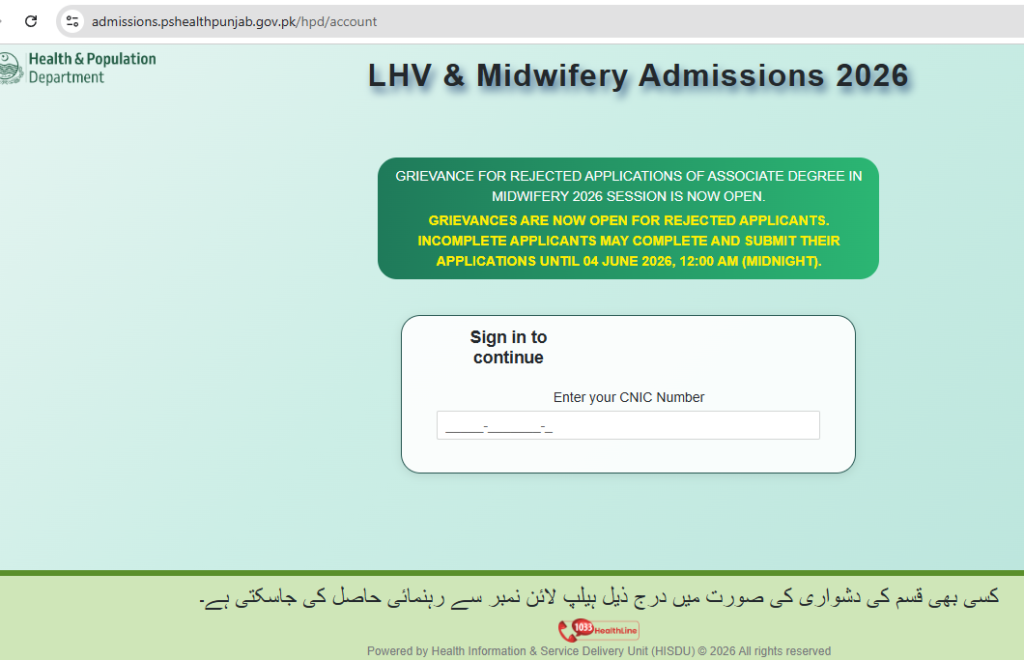
Open your web browser and navigate directly to the official Punjab Health Department admission portal: admissions.pshealthpunjab.gov.pk/hpd/account. Do not use third-party mirror links, as they may compromise your login credentials.
2.Log In with Your Credentials:Step 2.
Enter your registered CNIC Number (without dashes) and your secure Password that you created during the initial application phase. Click Sign In.
3.Check Your Selection Status:Step 3.
Once logged in, your student dashboard will open. If you have been selected in the current merit list, you will see a prominent notification displaying your allotted college along with two options: Accept and Reject.
4.Select Your Decision:Step 4.
If you wish to secure your admission in the 2-Year Midwifery program, click Accept.
Note: Clicking ‘Reject’ will immediately remove you from the current and all future merit list processes for this session.
5.Obtain and Scan the College Joining/Consent Form:Step 5.
Upon clicking Accept, the portal will prompt you to download or obtain the official physical consent/joining form associated with your designated college. Print this form, fill out your details, and sign it. Take a high-resolution, perfectly clear photo or scan of this completed form using your smartphone.
6.Upload the Signed Form and Submit:Step 6.
Upload the scanned copy of your signed college consent form back onto the portal in the designated file upload section (ensure the file format is PDF or JPEG as required). Verify that the text is completely legible, then click Final Submit.
Key Differences: Accept vs. Reject
Before clicking either option on your dashboard, make sure you understand the permanent consequences of your decision:
| Decision | System Action | Future Implications |
| Accept | Confirms your seat in the allotted Midwifery school. Generates the joining form. | Keeps you active in the system. You remain eligible for college upgradation in subsequent lists if seats open up at higher-preference institutions. |
| Reject | Voluntarily forfeits your allotted seat. | Immediately removes your application from the admission database. You will not be considered for any subsequent merit lists or vacant seats. |
Warning: Leaving the portal pending without choosing an option before the specified deadline is treated as a silent “Reject” by the automated system, and your seat will be automatically given to the next candidate on the waiting list.
Common Mistakes to Avoid During Consent Submission
Many candidates lose their hard-earned admission spots due to simple administrative errors. Keep the following safeguards in mind:
- Using Low-Quality Scans: Do not upload blurry, dark, or cropped photos of your college consent form. If the admission committee cannot verify your signature or the college stamp, your consent may be rejected during manual audits. Use free scanning apps (like Adobe Scan or CamScanner) to produce a clear, bright PDF document.
- Waiting Until the Final Hour: The P&SHCD server often experiences heavy traffic and slow loading times on the final day of consent submission. Submit your response at least 24 to 48 hours before the deadline to avoid portal crashes.
- Inputting Incorrect Login Details: If you have forgotten your password, use the Forgot Password link immediately on the login portal. Do not lock yourself out of your account by repeatedly entering incorrect credentials.
- Failing to Verify Upload Success: Once you upload your form, refresh your dashboard to ensure the file is successfully attached and the status updates to “Consent Submitted Successfully.”
Troubleshooting Technical Issues
If you encounter errors while accessing the portal or uploading files, try these standard troubleshooting steps:
1. Portal is Loading Slowly or Giving a “Server Error”
This is common during high-traffic windows when thousands of students are logging in simultaneously.
- Clear your browser cache and cookies, or try opening the link in Incognito/Private Browsing Mode.
- Switch from a mobile network to a stable Wi-Fi connection, or attempt to log in during off-peak hours (such as late at night or early in the morning).
2. Password Retrieval Issues
If you cannot remember your password and the automatic recovery email does not arrive:
- Check your Spam/Junk email folder.
- If the automated system fails, contact the official Punjab Health Department helpline.
3. Official Support Channels
If you experience persistent technical blockages that prevent you from submitting your consent, contact the department immediately:
- Primary Helpline: Call 1033 (P&SHCD Helpline)
- Technical Support: Visit the IT department or admission office of your nearest Public Health Nursing School or Midwifery School for manual intervention.
Actionable Next Steps
Your career in healthcare is just a few clicks away. Do not let technical delays or simple oversight stand in your way.
- Gather your CNIC and login password.
- Log in to admissions.pshealthpunjab.gov.pk/hpd/account to check your status.
- Click Accept, print the college-provided form, sign it, and upload a pristine digital copy.
- Keep a printed copy of your submitted online consent confirmation page for your physical records.